Android
Phone app for children
DownloadOpen the file after it downloads. If your phone asks, allow installs from this source. Parents do not install anything: they use the family portal in any browser.
Tracker 3D lets a child call for help in seconds, and lets parents see where their family is, only when each person has chosen to share. If someone feels unsafe, followed or lost, the whole family knows straight away.
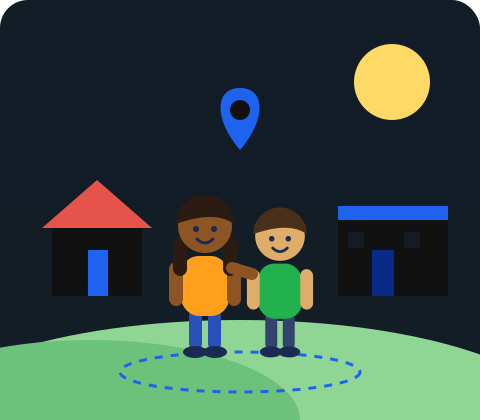
Children install the Android app on their phone. Parents manage everything from the family portal in any web browser, on a phone or a computer, with nothing to install.
Phone app for children
DownloadOpen the file after it downloads. If your phone asks, allow installs from this source. Parents do not install anything: they use the family portal in any browser.
Works in any browser
Open the family portalCreate your family, connect your child with their code, watch the live map, lock apps, and manage your plan.
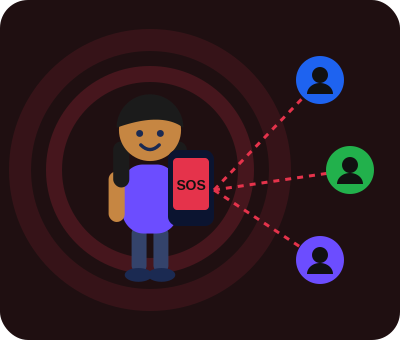
Children walk to school, take buses, play outside and sometimes get lost, followed or scared. Tracker 3D gives them a simple way to ask for help, and gives parents calm, clear information instead of worry.
It is built around trust. Children decide when to share. Everyone in the family can see what is being shared. Nothing is hidden, and nothing is recorded.
Simple for children to use, clear for parents to trust.
Hold the SOS button for three seconds. The family gets an alert with a map link, and your emergency contacts get a text message from your phone.
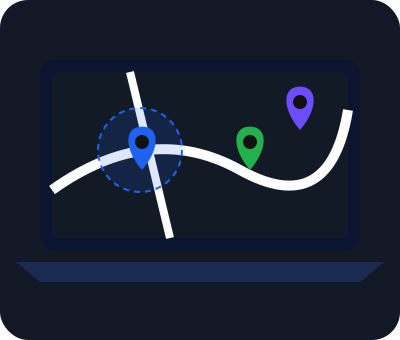
When a family member allows location, the family sees their real GPS position on the map and where they have been today.
Draw a circle around home or school. Parents are told when a child arrives or leaves.
A person can choose to share their camera so family can look in for a while. It is live only and never recorded.
See how long children use their phone and which apps they use most, and send gentle study-time reminders.
Check links and QR codes before opening them, test Wi-Fi safety and get warned about known scams.
With the child's own permission, their phone checks its notifications and tells a parent only about scams, threats, and requests for money or photos. Saved on your dashboard to use as evidence. Your child always sees a notice that it is on.
Add trusted people who are texted when SOS is sent, even if they do not have the app.
Join with an invitation. Every member can see who is in the family and what is being shared about them.
Four everyday situations, and what happens in each.
A parent sees the journey on the map and is told when their child arrives at home. No need to call and ask.
A child holds SOS. The family gets a map link to the exact spot, so someone can reach them quickly.
If a child has not arrived, parents can check the live map instead of guessing or panicking.
Check it in the app before opening it. Known scam and phishing links are flagged.
You are never in trouble for asking for help.
You choose when to share your location or camera. While sharing is on, the app shows a clear banner so you always know, and you can switch it off at any time.
Tracker 3D is made to protect you, not to spy on you.
Open the app or sign in on any computer to see your family on a live map, with alerts the moment something matters.
Built so families can trust it, and so it cannot be used in secret.
A banner shows on the phone whenever location or camera is being shared.
Only the newest camera picture is shown, then replaced. When you stop, it is deleted.
Location history is removed automatically after 30 days.
Parents sign in with a password and an authenticator code, with recovery codes for a lost phone.
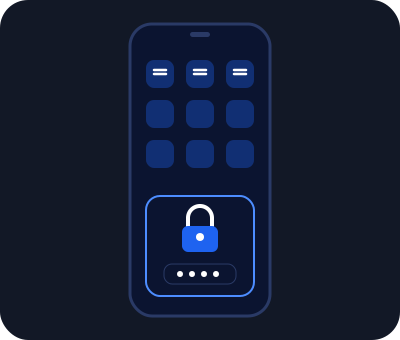
When it is time to do homework, a parent can freeze the apps on their child's phone. The picture on the right shows what the child sees: the apps are covered and only the parent's password gets through.
Before a child deletes Tracker 3D, the phone asks them to unfreeze their apps first, so they do not get stuck. Only a parent can remove the link between you and your child. Family chat is end-to-end encrypted, so only the two people in the chat can read it.
Yes. When you allow location, family members in your family see your real position on the map. It updates while the app is open, and in the background about every 15 minutes (Android may space it out further to save battery). You can pause sharing at any time.
Yes, when you choose to share your camera. After you tap Allow and Start, the people you picked see a live picture that refreshes every few seconds. It has no sound and is not smooth video. A red banner shows on your phone the whole time.
No. Only the newest picture is kept so family can see it, and each new picture replaces the last one. When you stop, it is deleted. Nothing is recorded.
No. The camera works only while the sharing screen is open, and ends when you stop, leave the screen or close the app. Android does not allow camera use in the background, and this is also what stops it from ever being used secretly.
Walk to a busy place, then hold the SOS button for three seconds. Your family gets an alert with your location. Tell a trusted adult or call your local emergency number.
Accounts are created in the Tracker 3D app. Sign up in the app first, then come to this website and tap Family sign in. Use the same email and password, then type the code from your authenticator app.
Yes. Parents sign in on this website with their email, password and authenticator code to see the live map, alerts, screen time and shared camera.
The core safety features are free for families.
No. In an emergency, call your local emergency number first. Tracker 3D helps your family find you and respond quickly.
No. A child sees a short message saying only a parent can turn off location sharing. Parents decide this on the family portal. Location and camera sharing can be stopped with one tap, and a clear banner shows on the phone whenever either is on.
Location history is deleted after 30 days. Camera pictures are never saved at all.
Parents get one-time recovery codes when they set up two-step sign-in. They can use a code to get back in and link a new authenticator app.
Family data is sensitive, so protection is built in at every step.
Every sign-in needs your password and a fresh code from your authenticator app. Codes work only once.
Connections use HTTPS only, and authenticator secrets are encrypted in storage. Passwords are never stored as plain text.
Repeated wrong guesses lock the account for longer each time, and new-device sign-ins send you an alert.
Use a saved recovery code to link a new authenticator. The old one stops working straight away.
If you cannot sign in, lost your phone, or no longer have your authenticator, we can help.
Contact the admin using the form below, from the email on your account. The admin issues a fresh authenticator for your account and, for parents, new recovery codes. We send them to your account email. Old codes stop working straight away.
On the sign-in page choose Forgot password and enter a code from your authenticator, or one of your recovery codes. If you have neither, contact the admin to get a new authenticator first, then reset your password.
Ask the admin to issue a new authenticator for your child's account. Children get the authenticator only, with no recovery codes. It is sent to the email on the account.
Questions, feedback or need help with your account? Send us a message and we will reply by email.
Email us: kennynetwork242@gmail.com
In an emergency, call your local emergency number first. This form is not monitored around the clock.
Parents create the family in the family portal. Children install the Android app and connect with the code from their parent.
Android app for children. Family portal for parents, in any browser.